Overview
reNgine Cloud supports AI-powered vulnerability analysis using OpenAI's GPT models. This feature automatically analyzes scan findings, provides remediation guidance, prioritizes vulnerabilities, and generates comprehensive security reports. This tutorial covers OpenAI API setup, configuration, cost management, and best practices for AI-enhanced reconnaissance.
Prerequisites
- reNgine Cloud instance deployed and configured
- Admin access to reNgine dashboard
- OpenAI account with API access
- Payment method configured on OpenAI account
- At least one completed scan with findings
What You'll Learn
- Create and configure OpenAI API keys
- Enable AI analysis in reNgine
- Analyze vulnerabilities with GPT
- Generate AI-powered security reports
- Prioritize findings with AI assistance
- Monitor and optimize API costs
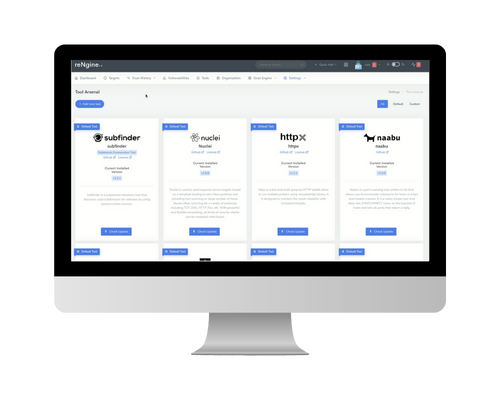
reNgine Vulnerability Scanning - AI-Powered Analysis
Step 1: Create OpenAI API Key
First, obtain an API key from OpenAI to enable GPT-powered analysis.
Create API Key
- Go to platform.openai.com and sign in
- Navigate to "API Keys" in the left sidebar
- Click "Create new secret key"
- Name it "reNgine Production"
- Set permissions to "All" or "Read & Write"
- Copy the API key (shown only once)
- Store it securely - you won't be able to see it again
# Your API key will look like this:
sk-proj-abcdefghijklmnopqrstuvwxyz1234567890ABCDEFGHIJKLMNOPQRSTUVWXYZ

# IMPORTANT: Never commit API keys to version control
# Store in environment variables or secrets manager
Security Note: Treat API keys like passwords. Never share them publicly, commit them to repositories, or expose them in client-side code. Use environment variables or secure secrets management.
Step 2: Configure OpenAI in reNgine
Add your OpenAI API key to reNgine's configuration.
Via Dashboard
- Log into reNgine dashboard
- Navigate to "Settings" → "AI Configuration"
- Click "Add API Provider"
- Select "OpenAI" from provider dropdown
- Paste your API key
- Select GPT model (GPT-4 or GPT-3.5-turbo)
- Click "Save Configuration"
- Test connection by clicking "Test API"
# Or configure via environment variables
# SSH into your reNgine instance
ssh user@your-rengine-server

# Edit docker-compose environment
cd /opt/rengine
nano .env

# Add OpenAI configuration
OPENAI_API_KEY=sk-proj-your-api-key-here
OPENAI_MODEL=gpt-4-turbo-preview
OPENAI_MAX_TOKENS=4096
OPENAI_TEMPERATURE=0.3

# Restart containers to apply changes
docker-compose restart web celery
Step 3: Choose the Right Model
Different GPT models offer varying capabilities and costs. Choose based on your needs and budget.
Model Comparison
| Model | Capability | Cost (per 1M tokens) | Best For |
|---|---|---|---|
| GPT-4-turbo | Highest quality | $10 (input) / $30 (output) | Complex analysis, detailed reports |
| GPT-4 | High quality | $30 (input) / $60 (output) | Critical vulnerabilities |
| GPT-3.5-turbo | Good quality | $0.50 (input) / $1.50 (output) | High-volume scanning, basic analysis |
Step 4: Analyze Vulnerabilities with AI
Once configured, you can use AI to analyze individual vulnerabilities or entire scan results.
Via Dashboard
- Navigate to a completed scan
- Go to "Vulnerabilities" tab
- Click on any vulnerability to view details
- Click "Analyze with AI" button
- Wait 5-10 seconds for GPT analysis
- Review AI-generated insights, remediation steps, and risk assessment
POST /api/vulnerabilities/42/analyze/
Authorization: Bearer YOUR_API_KEY

{
  "vulnerability_id": 42,
  "use_ai": true,
  "model": "gpt-4-turbo-preview"
}

# Response includes AI analysis
{
  "vulnerability_id": 42,
  "title": "SQL Injection in Search Parameter",
  "severity": "critical",
  "ai_analysis": {
    "summary": "This SQL injection vulnerability allows attackers to manipulate...",
    "impact": "An attacker could extract sensitive database information...",
    "exploitation_difficulty": "Easy - No authentication required",
    "remediation": [
      "Implement parameterized queries using prepared statements",
      "Add input validation and sanitization",
      "Apply the principle of least privilege to database user",
      "Enable web application firewall (WAF) rules"
    ],
    "references": [
      "https://owasp.org/www-community/attacks/SQL_Injection",
      "CWE-89: SQL Injection"
    ],
    "business_impact": "High - Could lead to data breach and regulatory penalties"
  }
}
AI analysis provides context-aware remediation guidance tailored to your specific vulnerability.
Step 5: Generate AI-Powered Reports
Generate comprehensive security reports with AI-enhanced analysis and executive summaries.
Report Types
- Executive Summary: High-level overview for stakeholders
- Technical Report: Detailed findings for security teams
- Remediation Plan: Prioritized action items with AI guidance
- Compliance Report: Mapped to frameworks (OWASP, NIST, PCI-DSS)
- Trend Analysis: Compare findings across multiple scans
POST /api/scans/42/generate-report/
Authorization: Bearer YOUR_API_KEY

{
  "scan_id": 42,
  "report_type": "executive_summary",
  "include_ai_analysis": true,
  "format": "pdf",
  "sections": [
    "executive_summary",
    "key_findings",
    "vulnerability_breakdown",
    "remediation_roadmap",
    "appendix"
  ]
}

# Generated report includes:
# - AI-generated executive summary
# - Risk prioritization matrix
# - Remediation timeline recommendations
# - Business impact analysis
# - Compliance mapping
Step 6: Vulnerability Prioritization
Use AI to prioritize vulnerabilities based on exploitability, business impact, and environmental context.
AI Prioritization Factors
| Factor | Description | Weight |
|---|---|---|
| CVSS Score | Industry-standard severity rating | High |
| Exploitability | Ease of exploitation | High |
| Asset Criticality | Business importance of affected system | Medium |
| Public Exposure | Internet-facing vs internal | High |
| Known Exploits | Availability of exploit code | Very High |
| Data Sensitivity | Type of data at risk | High |
Step 7: Monitor API Costs
Track and optimize your OpenAI API usage to control costs.
Cost Monitoring
- Log into platform.openai.com/usage
- Review daily/monthly API usage and costs
- Set up usage alerts in OpenAI dashboard
- Configure spending limits to prevent overages
- Monitor token consumption by model
# Typical costs for reNgine AI analysis

# Small scan (50 findings)
# - GPT-4-turbo: ~$2-5 per full analysis
# - GPT-3.5-turbo: ~$0.10-0.30 per full analysis

# Medium scan (200 findings)
# - GPT-4-turbo: ~$10-20 per full analysis
# - GPT-3.5-turbo: ~$0.50-1.00 per full analysis

# Large scan (500+ findings)
# - GPT-4-turbo: ~$30-50 per full analysis
# - GPT-3.5-turbo: ~$1.50-3.00 per full analysis

# Recommendation: Use GPT-3.5-turbo for routine scans
#                 Reserve GPT-4 for critical findings only
Cost Optimization Tips
- Use GPT-3.5-turbo for routine vulnerability analysis
- Reserve GPT-4 for critical/high severity findings only
- Analyze only new/changed findings in recurring scans
- Set token limits to prevent runaway costs
- Cache AI responses for duplicate vulnerabilities
- Batch multiple findings in single API calls when possible
- Configure spending alerts and monthly budgets
Advanced Configuration
Fine-tune AI behavior for your specific needs:
# Advanced AI configuration options
AI_ENABLED=true
OPENAI_API_KEY=sk-proj-your-key

# Model selection
OPENAI_MODEL=gpt-4-turbo-preview
OPENAI_FALLBACK_MODEL=gpt-3.5-turbo  # Use if primary fails

# Token limits
OPENAI_MAX_TOKENS=4096
OPENAI_TEMPERATURE=0.3  # Lower = more focused, higher = more creative

# Filtering - Only analyze certain severities
AI_ANALYZE_SEVERITIES=critical,high

# Rate limiting
AI_MAX_REQUESTS_PER_MINUTE=20
AI_CONCURRENT_REQUESTS=5

# Caching
AI_CACHE_ENABLED=true
AI_CACHE_TTL=86400  # Cache responses for 24 hours

# Custom prompts
AI_SYSTEM_PROMPT="You are a senior security researcher analyzing vulnerabilities..."
AI_ANALYSIS_TEMPLATE="Provide: 1) Summary 2) Exploitation steps 3) Remediation..."
Example AI Analysis Output
Here's what AI-powered analysis looks like for a real vulnerability:
SQL Injection Vulnerability - AI Analysis
Vulnerability: SQL Injection in /api/search endpoint

AI Analysis Summary:
This critical SQL injection vulnerability exists in the search parameter
of the /api/search endpoint. The application constructs SQL queries using
unsanitized user input, allowing attackers to inject arbitrary SQL commands.

Exploitation Scenario:
1. Attacker sends: /api/search?q=' OR '1'='1
2. Resulting query: SELECT * FROM products WHERE name = '' OR '1'='1'
3. Returns all database records, bypassing intended logic

Business Impact:
- HIGH RISK: Complete database compromise possible
- Potential data breach affecting customer PII
- Regulatory compliance violations (GDPR, PCI-DSS)
- Reputational damage from public disclosure
- Estimated remediation cost: $15,000-30,000

Remediation Steps (Prioritized):
1. IMMEDIATE (24 hours):
   - Deploy WAF rule to block SQL injection patterns
   - Enable query logging for forensic analysis
   - Monitor for exploitation attempts

2. SHORT TERM (1 week):
   - Refactor code to use parameterized queries
   - Implement input validation using allowlists
   - Add unit tests for injection vulnerabilities

3. LONG TERM (1 month):
   - Conduct code review of similar endpoints
   - Implement prepared statements across application
   - Add automated security testing to CI/CD pipeline
   - Train development team on secure coding practices

Code Fix Example:
// BEFORE (Vulnerable)
query = "SELECT * FROM products WHERE name = '" + userInput + "'"

// AFTER (Secure)
query = "SELECT * FROM products WHERE name = ?"
preparedStatement.setString(1, userInput)

References:
- OWASP: SQL Injection Prevention Cheat Sheet
- CWE-89: Improper Neutralization of Special Elements used in an SQL Command
- CAPEC-66: SQL Injection
Privacy and Data Considerations
Important: Data Sent to OpenAI
When using AI analysis, reNgine sends vulnerability data to OpenAI's API. Be aware:
- Vulnerability descriptions, URLs, and technical details are sent to OpenAI
- OpenAI's API does not use customer data to train models (as of API Terms)
- Data is transmitted over HTTPS but processed on OpenAI's infrastructure
- Consider using local LLMs (see Ollama tutorial) for sensitive environments
- Review your organization's data classification policies before enabling
- Redact sensitive information (IPs, credentials) before AI analysis
Troubleshooting
Common Issues
API Key Invalid:
- Verify key is copied correctly without extra spaces
- Check if key has been revoked in OpenAI dashboard
- Ensure API key has appropriate permissions
- Verify OpenAI account has valid payment method
Rate Limit Exceeded:
- Reduce concurrent AI analysis requests
- Upgrade to higher OpenAI tier if needed
- Implement request queuing with delays
- Use caching to avoid duplicate analysis
High Costs:
- Switch to GPT-3.5-turbo for cost savings
- Only analyze critical/high severity findings
- Enable response caching
- Set monthly spending limits in OpenAI dashboard
Next Steps
GPU Setup for Local LLM
Configure local GPU-accelerated LLMs using Ollama for offline AI analysis.
View Tutorial →Run Your First Scan
Learn how to execute comprehensive reconnaissance scans with reNgine.
View Tutorial →Need Help?
Having trouble configuring AI analysis? Our support team is here to help.
Contact Support